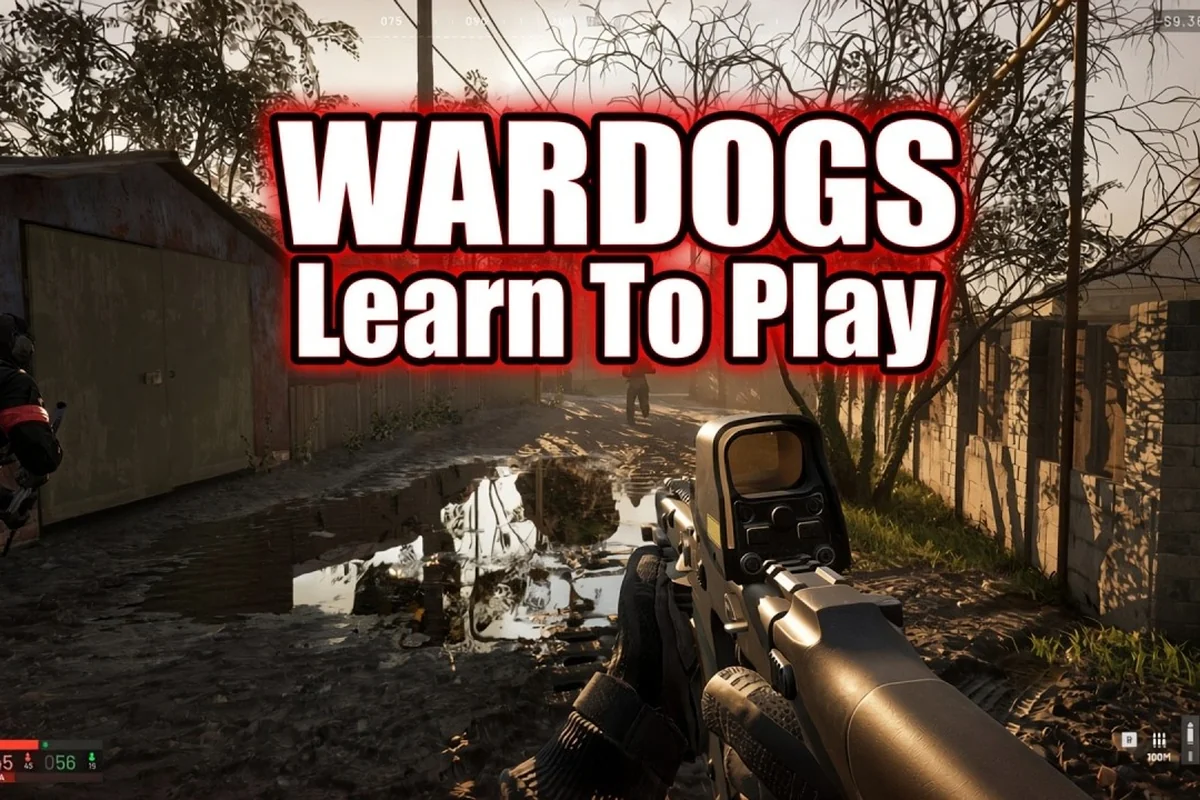
Getting your WARDOGS controls dialed in before the September 10 Early Access launch on Steam is the single fastest way to improve your performance in this tactical all-out warfare FPS. With 100 players split across three teams fighting over a randomized 2x2km Control Zone, the difference between winning a firefight and respawning often comes down to how quickly your fingers find the right key. This guide breaks down the default keybinds, the settings that matter most, and the PC requirements you need for smooth, responsive gameplay.
The game, developed by BULKHEAD (the studio behind Battalion 1944) and published by Team17, demands precision across infantry combat, vehicle operation, and base building. Because the battlefield spans a massive 256km² map with destructible environments, your control scheme needs to support rapid transitions between fighting on foot and jumping into armor. Understanding the full control layout before you drop into your first match gives you a measurable advantage over players who are still fumbling through menus.
Understanding the default WARDOGS controls layout
The default control scheme follows familiar FPS conventions while adding layers for the game's unique combined-arms mechanics. BULKHEAD designed the layout to keep your fingers close to movement keys while allowing quick access to building, vehicle, and communication functions. Since the game launched in Early Access on September 10, 2026, the default bindings reflect extensive playtesting from the Battalion 1944 community, though you should expect minor tweaks as the developers continue refining the experience.
The core movement and combat bindings mirror what most competitive FPS players already know, which shortens the learning curve significantly. However, the vehicle and building controls introduce new inputs that require deliberate practice to master. According to the official WARDOGS Steam page, the game emphasizes teamwork and cash management, so your control scheme should prioritize quick communication and fast building placement alongside traditional combat efficiency.
Core movement and combat keybinds
The foundation of any FPS control scheme rests on movement and aiming, and WARDOGS delivers a standard layout that feels immediately familiar. WASD handles movement, the mouse controls your camera, and the shift key triggers sprint. For combat, the left mouse button fires your weapon while the right mouse button aims down sights. The R key reloads, and the G key throws grenades, keeping all essential combat actions within easy reach of your left hand.
| Action | Default Key | Alternative Option |
|---|---|---|
| Move Forward | W | Up Arrow |
| Move Backward | S | Down Arrow |
| Strafe Left | A | Left Arrow |
| Strafe Right | D | Right Arrow |
| Sprint | Shift | Caps Lock |
| Crouch | Ctrl | C |
| Prone | Z | X |
| Jump | Space | V |
| Fire Weapon | Left Mouse | Right Mouse (swap) |
| Aim Down Sights | Right Mouse | Left Mouse (swap) |
| Reload | R | Mouse 4 |
| Switch Weapon | 1-3 | Mouse Wheel |
| Throw Grenade | G | Mouse 5 |
| Use/Interact | E | F |
Because WARDOGS features a destructible battlefield, you will frequently need to reposition quickly when walls collapse or buildings crumble. Many players report that binding crouch to Ctrl and prone to Z creates an efficient crouch-spam mechanic that makes you harder to hit during close-quarters engagements. The community testing suggests that keeping your index finger on D and ring finger on A while using your thumb for space and C creates the most efficient hand position for extended play sessions.
Vehicle and building controls
The vehicle controls in WARDOGS represent the most significant departure from standard FPS conventions, and getting comfortable with them early pays dividends. The game features a full combined-arms sandbox where you can operate everything from supply helicopters to main battle tanks. The default bindings place vehicle enter and exit on the F key, with the mouse controlling turret rotation and WASD managing movement.
| Vehicle Action | Default Key | Notes |
|---|---|---|
| Enter/Exit Vehicle | F | Also used for seat switching |
| Accelerate | W | Forward movement |
| Reverse | S | Backward movement |
| Steer Left/Right | A/D | Vehicle-specific turning |
| Fire Main Weapon | Left Mouse | Tank cannon or helicopter guns |
| Fire Secondary | Right Mouse | Machine guns or missiles |
| Switch Seat | Space | Move between driver/gunner |
| Vehicle Camera | C | Cycle external/internal views |
| Handbrake | Space (ground) | Tanks and trucks |
| Collective Up/Down | W/S (helicopter) | Vertical movement |
Building controls deserve special attention because the game's persistent cash system rewards players who construct defensive positions. The B key opens the build menu, and once you select a structure, the mouse places it while the scroll wheel rotates it. The Q key toggles between build and combat modes, which prevents accidental construction during firefights. Community reports indicate that binding build rotation to the Q and E keys instead of the scroll wheel provides more precise placement, especially when constructing defensive walls under fire.
Optimizing WARDOGS settings for performance and visibility
Your WARDOGS settings directly impact both frame rate and competitive visibility, and finding the right balance transforms your gameplay experience. The game runs on Unreal Engine technology that BULKHEAD has optimized for large-scale battles, but the 100-player matches with destruction effects demand thoughtful graphics configuration. According to the official BULKHEAD game page, the game targets smooth performance on mid-range hardware while offering scalability for high-end systems.
The settings menu separates options into graphics, gameplay, and audio categories, each affecting performance differently. Graphics settings control visual fidelity and frame rate, gameplay settings affect how the game feels and responds, and audio settings influence your spatial awareness on the battlefield. Understanding which settings matter most for competitive play helps you allocate your hardware resources effectively.
Graphics settings that matter for competitive play
The graphics settings in WARDOGS directly influence how quickly you spot enemies and how smoothly the game runs during intense firefights. While maxing out every option produces beautiful screenshots, competitive players prioritize frame rate and visibility over visual polish. The destructible environment means debris and particle effects constantly fill the screen, so reducing certain effects improves target acquisition significantly.
| Setting | Competitive Value | Recommended |
|---|---|---|
| Texture Quality | Low impact on FPS | High |
| Shadow Quality | Medium impact | Low |
| Anti-Aliasing | Medium impact | Off or FXAA |
| View Distance | High impact on spotting | High |
| Effects Quality | High impact on FPS | Low |
| Post-Processing | Medium impact | Low |
| Motion Blur | Hurts visibility | Off |
| VSync | Adds input lag | Off |
| FOV | Improves awareness | 90-100 |
The View Distance setting deserves special attention because WARDOGS features engagements across long sightlines in the mountainous Eastern European setting. Setting this to High ensures you spot enemy vehicles and infantry at maximum range, which is crucial when defending control zones. However, Effects Quality should stay Low because explosions and building collapses generate massive particle counts that tank frame rates during the most chaotic moments.
Motion Blur is universally considered detrimental in competitive FPS games, and WARDOGS is no exception. When you snap your aim toward an enemy, motion blur smears the screen and makes precise tracking nearly impossible. Similarly, VSync introduces input lag that delays your shots, so keeping it disabled ensures your mouse movements translate instantly to on-screen action. Players with high-refresh-rate monitors should also verify that the game's frame rate limiter is set to match their display's refresh rate.
Gameplay and audio settings for tactical awareness
Gameplay settings in WARDOGS control everything from crosshair appearance to vehicle sensitivity, and these options dramatically affect your combat effectiveness. The game offers separate sensitivity sliders for infantry aiming and vehicle turrets, which is essential because the two require different precision levels. Infantry combat benefits from lower sensitivity for precise tracking, while vehicle turrets often need higher sensitivity to track fast-moving targets.
Audio settings play a critical role in WARDOGS because sound cues alert you to enemy movements, vehicle approaches, and building destruction. The game's audio design emphasizes directional awareness, so using headphones with virtual surround sound provides a significant tactical advantage. Community testing suggests setting the master volume to 80 percent while keeping footsteps and gunfire channels at 100 percent, which prevents audio clipping while preserving critical sound cues.
The camera shake setting also deserves adjustment because explosions and nearby artillery strikes create significant screen movement. Reducing camera shake to 30 percent or lower maintains situational awareness during heavy bombardment while still providing feedback that you are under fire. Players who experience motion sickness should consider disabling camera shake entirely, as the constant movement during large-scale battles can become disorienting.
WARDOGS Minimum and Recommended Hardware Specs
Understanding the WARDOGS PC requirements ensures your system can handle the game's demanding large-scale battles before you invest time in optimizing settings. The game's 100-player matches with destruction physics require substantial processing power, particularly in the CPU department where all the player positions and building states must be calculated. While the exact minimum specifications were still being finalized during Early Access development, community testing has established reliable performance baselines.
| Component | Minimum | Recommended | Competitive |
|---|---|---|---|
| CPU | Intel i5-6600K | Intel i7-9700K | Intel i9-12900K |
| GPU | GTX 1060 6GB | RTX 2070 | RTX 3080 or better |
| RAM | 12 GB | 16 GB | 32 GB |
| Storage | 50 GB HDD | 50 GB SSD | 50 GB NVMe SSD |
| OS | Windows 10 64-bit | Windows 11 64-bit | Windows 11 64-bit |
The CPU requirements for WARDOGS are notably higher than typical FPS titles because the game simulates 100 players, vehicles, and destructible buildings simultaneously. Players running minimum-spec CPUs report frame drops during intense battles when multiple buildings collapse at once, which is why the recommended tier includes a modern six-core processor. The game benefits significantly from fast storage as well, with SSD users reporting faster loading times and fewer texture pop-ins during vehicle travel.
Frame rate targets vary based on your hardware and display, but competitive players should aim for at least 144 FPS to match high-refresh-rate monitors. The game's optimization during Early Access means performance improves with each patch, so players with mid-range hardware should revisit their settings after major updates. According to community reports, the game runs surprisingly well on the recommended tier at 1080p with competitive settings, maintaining 100-120 FPS in most combat scenarios.
Advanced keybind configurations and customization strategies
Moving beyond the default WARDOGS keybinds opens up customization opportunities that can significantly improve your gameplay efficiency. The game's control settings allow complete remapping of every action, and competitive players develop personalized layouts that suit their hand size, play style, and muscle memory. The key is identifying which actions you perform most frequently and positioning those keys for minimal finger travel. Once you’ve identified your most-used actions and trimmed the travel distance, the same logic of deliberate, ergonomic placement applies to every other control scheme you’ll encounter, so if you’re just starting to build your own setups from scratch, our For Beginners guide walks through the foundational principles of efficient key mapping that make these personalized layouts possible.
Mouse button optimization
Modern gaming mice offer additional buttons that many players underutilize in WARDOGS. The side buttons on your mouse can handle critical actions that would otherwise require moving your left hand from movement keys. Community reports indicate that binding grenades to the forward side button and melee to the rear side button creates a natural flow during combat, allowing you to throw explosives without breaking your movement rhythm.
| Mouse Button | Recommended Binding | Benefit |
|---|---|---|
| Mouse 4 (Forward) | Grenade | Quick access without hand movement |
| Mouse 5 (Rear) | Melee | Instant close-range response |
| Mouse 3 (Wheel Click) | Push to Talk | Communication without key conflicts |
| DPI Shift | Vehicle Camera | Fast perspective switching |
The DPI Shift button on gaming mice provides a clever solution for vehicle combat, where you need different sensitivity than infantry play. By binding this button to toggle between two sensitivity profiles, you can maintain precise infantry aiming while switching to faster turret tracking when entering vehicles. This approach eliminates the need to adjust sensitivity sliders mid-match, which would otherwise leave you vulnerable during the transition.
Building efficient muscle memory
Developing efficient muscle memory for WARDOGS controls requires deliberate practice rather than simply playing matches. The game's combined-arms nature means you need to switch between infantry, vehicle, and building modes fluidly, and each transition should feel automatic. Players who spend time in the game's training mode practicing these transitions report significantly better performance in actual matches.
Key binding principles for WARDOGS emphasize keeping your most-used actions on your strongest fingers. Your index finger should handle frequently pressed keys like E for interact and R for reload, while your pinky manages modifiers like shift for sprint and ctrl for crouch. Actions you perform less frequently, such as opening the build menu or switching camera modes, can sit on keys that require more finger travel.
The communication keys deserve special consideration because WARDOGS emphasizes teamwork heavily. Binding push-to-talk to a comfortable key like V or the mouse wheel click ensures you can call out enemy positions without disrupting your movement. Players who use voice communication extensively often rebind the default talk key to something closer to their movement fingers, reducing the delay between spotting an enemy and reporting their location.
Troubleshooting common WARDOGS control issues
Even with proper configuration, players encounter control issues that affect their gameplay experience. Understanding common problems and their solutions saves you from frustrating troubleshooting sessions during matches. The most frequently reported issues involve sensitivity inconsistencies, key binding conflicts, and input lag that can make the game feel unresponsive.
Sensitivity inconsistencies between infantry and vehicle modes confuse many players, especially when the transition feels jarring. The game's separate sensitivity settings for each mode can create dramatically different aim speeds, which disrupts muscle memory. Community testing suggests setting vehicle sensitivity to approximately 1.5 times your infantry sensitivity, which provides enough speed for turret tracking while maintaining a familiar feel.
Key binding conflicts occur when multiple actions share the same key, causing unintended activations during gameplay. The default layout avoids most conflicts, but custom bindings can create overlaps that cause frustrating behavior. Before finalizing your control scheme, review the full binding list to ensure no two critical actions share a key, particularly combat actions that could trigger accidentally.
Input lag manifests as a delay between your mouse movement and the on-screen response, making the game feel sluggish. This issue often stems from VSync being enabled, high polling rate mismatches, or background applications consuming system resources. Disabling VSync, verifying your mouse polling rate matches the game's expectations, and closing unnecessary background applications typically resolves most input lag complaints.
Frequently Asked Questions
What are the default WARDOGS keybinds for vehicles?
The default vehicle controls use WASD for movement, with W accelerating and S reversing. The F key enters and exits vehicles, while the mouse controls turret rotation and firing. Space activates the handbrake for ground vehicles or adjusts collective for helicopters. You can rebind all vehicle actions in the settings menu.
Can I customize the WARDOGS controls completely?
Yes, WARDOGS offers full keybinding customization for every action in the game. You can remap infantry, vehicle, and building controls independently through the settings menu. The game also supports multiple control profiles, allowing you to create different layouts for different play styles or game modes.
What are the minimum WARDOGS PC requirements?
The minimum requirements include an Intel i5-6600K processor, GTX 1060 6GB graphics card, 12 GB RAM, and 50 GB of storage space. However, competitive play benefits significantly from the recommended specifications, which include an i7-9700K, RTX 2070, and 16 GB RAM for consistent frame rates.
How do I fix input lag in WARDOGS?
Input lag typically comes from VSync being enabled or background applications consuming resources. Disable VSync in the graphics settings, close unnecessary background programs, and verify your mouse polling rate matches your hardware specifications. Reducing graphics settings like Effects Quality can also improve input responsiveness during intense battles.
Does WARDOGS support custom mouse sensitivity settings?
Yes. WARDOGS offers separate sensitivity sliders for infantry aiming, vehicle turrets, and ADS zoom levels, so you can fine-tune each independently. For optimal control in 100-player three-team battles, set your vehicle turret sensitivity lower than infantry to maintain precision during long-range engagements, then use your mouse’s DPI shift to toggle between profiles.